New Visual Rule Manager: Configure SQL Code Analysis Without Editing XML
Configuring SQL static code analysis rules just got easier. The latest release of SQL Database Project Power Tools includes a visual Rule Manager — a settings dialog that lets you enable, disable, and configure rule severity without manually editing your SQL Database project file.
If you've used the new Code Analysis Settings dialog in VS Code, this brings an even better experience to Visual Studio and SQL Server Management Studio (SSMS).
Why This Matters
SQL code analysis has been part of the SSDT workflow for years. Before deploying schema changes, you can run static analysis rules against your project to catch potential issues — things like missing primary keys, deprecated syntax, or performance anti-patterns.
But configuring which rules to disable or set warning levels has always meant manually editing XML in your project file:
<PropertyGroup>
  <RunSqlCodeAnalysis>True</RunSqlCodeAnalysis>
  <SqlCodeAnalysisRules>-SqlServer.Rules.SRD0004;+!SqlServer.Rules.SRN0005</SqlCodeAnalysisRules>
</PropertyGroup>
Not terrible, but not exactly intuitive either. You need to know the rule IDs, the syntax for enabling/disabling, and how to set severity levels. For teams with many rules to configure, this quickly becomes error-prone.
The Visual Rule Manager
The new Rule Manager dialog changes this completely.
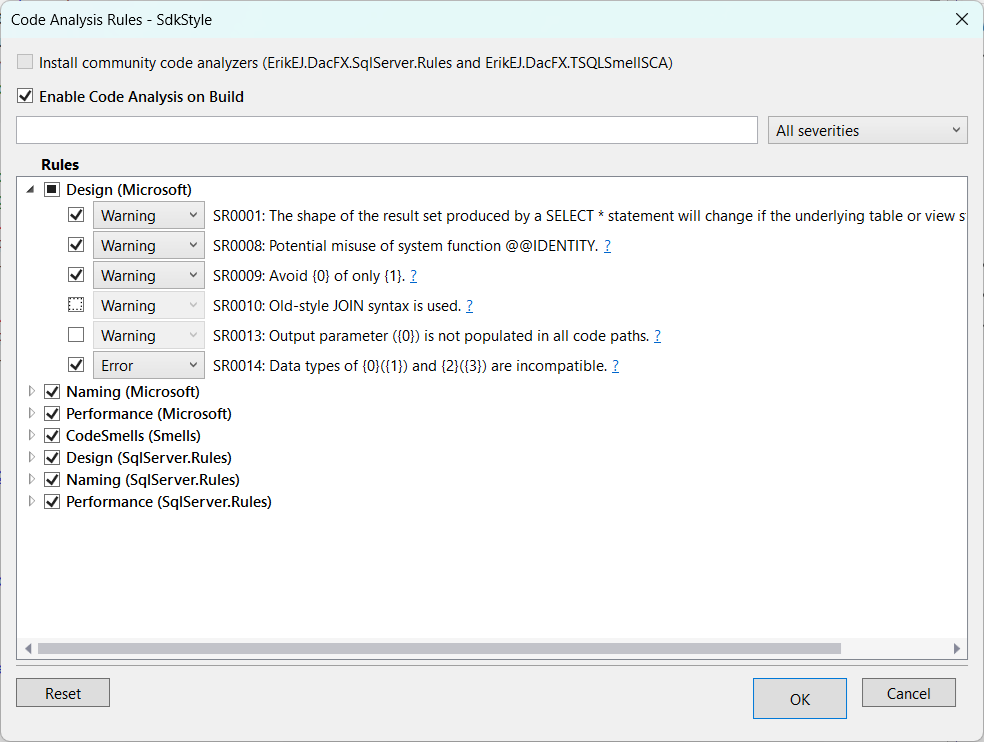
To open it: right-click your SQL database project in Solution Explorer → SQL Project Power Tools → Manage code analysis rules.
From the dialog you can:
- Enable or disable code analysis on build — a checkbox at the top controls whether analysis runs as part of your build
- Install community analyzers - If these packages, that add more than 130 additional rules, are not present, add them to the project.
- Search for rules — find rules by ID, description, or category using the search box
- Link to detailed documentation - use the
?link to better understand the rules, with examples and more - Filter by severity — quickly see which rules are configured as errors vs. warnings
- Enable or disable individual rules — toggle rules with checkboxes
- Change rule severity — set individual rules to Warning or Error using a drop-down
- Manage rules by category — enable or disable entire categories at once using the group checkbox
- Reset to defaults — revert all settings with a single button click
Select OK to save your changes to the project file, or Cancel to discard.
What is SQL Database Project Power Tools?
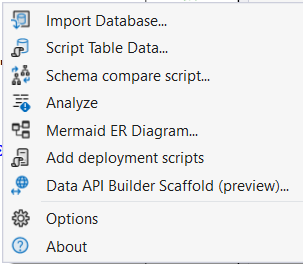
If you're not familiar with the extension, SQL Database Project Power Tools is a free, open-source Visual Studio (and SSMS) extension that enhances your experience when working with SQL Server database projects. Key features include:
- Templates - for Visual Studio, project and item templates to get you started quickly.
- Database Import — Import an existing database schema into your project, automatically generating all necessary SQL scripts organized by object type
- Visual Schema Compare — Compare your project with a database to see what needs to be deployed, or compare a database with your project to update your files
- Static Code Analysis — Find potential issues before deployment using 150+ rules covering design, naming, performance, and security
- E/R Diagrams — Generate Mermaid diagrams showing relationships between your tables, perfect for documentation
- Table Data Scripting — Generate INSERT statements for seed data
- dacpac Explorer — Browse the contents of your built .dacpac files directly in Solution Explorer
Getting Started
-
Install the extension in Visual Studio: In Visual Studio, go to Extensions → Manage Extensions, search for "SQL Database Project Power Tools", and click Install. Or download from the Visual Studio Marketplace.
-
Install the extension in SSMS: Download from the Open VSIX Gallery. Once downloaded, double click to install.
-
Open the Rule Manager: Right-click your SQL database project → SQL Project Power Tools → Manage Code Analysis Rules.
-
Configure your rules: Enable the rules that matter to your team, set appropriate severity levels, and save.
The Rule Manager works with SDK-style SQL database projects using the MSBuild.Sdk.SqlProj community SDK or the Microsoft https://learn.microsoft.com/sql/tools/sql-database-projects/get-started?view=sql-server-ver17&pivots=sq1-visual-studio-sdk SDK.
Also Available in SSMS
The Rule Manager is also available in SQL Server Management Studio 22+ through the SSMS version of the extension. If you're taking advantage of the new Database DevOps Preview features in SSMS, you can configure your code analysis rules without leaving your favorite tool.
Summary
The visual Rule Manager removes the friction from configuring SQL code analysis. No more memorizing rule IDs or editing XML by hand. Just open the dialog, check the boxes, and save.
Combined with the schema compare, database import, and E/R diagram features, SQL Database Project Power Tools makes working with SQL database projects more productive — whether you're in Visual Studio or SSMS.