From .sqlproj to production: generate a well documented Azure DevOps pipeline for your SQL Database Project
Building a .dacpac is the easy part. Getting it deployed to Azure SQL from a pipeline - safely, repeatably, without secrets in variables, and in a way that a reviewer can actually understand before pressing "Approve" - is where most teams lose days. There is no shortage of blog posts and Stack Overflow answers covering one of the pieces, but you have to assemble the whole puzzle yourself, and the pieces that are easy to forget are exactly the ones that fail at 2 AM.
The latest release of SQL Project Power Tools (for Visual Studio and SSMS) adds a new command: Add Azure DevOps Pipeline.... It generates a complete, opinionated starter pipeline for your SQL Database Project, plus the documentation and setup checklist you need to get it running. In this post I will walk through what it generates, and - more importantly - why.
Why database deployment pipelines are hard
If you have built one of these before, you probably recognize this list:
- Authentication: a SQL login password in a pipeline variable is a secret that must be rotated, can leak in logs, and is often shared between environments. Going passwordless involves an Entra identity, a service connection and a database user - and all three must line up.
- Firewall: a Microsoft-hosted agent gets a new IP address on every run, so the Azure SQL firewall blocks it. The common "fix" - Allow Azure services and resources to access this server - opens the server to every Azure tenant, not just yours.
- Reviewing changes: the actual SQL that will run depends on the current state of the target database. A reviewer approving a production deployment usually has no idea what is about to happen.
- Drift: the target database can change between the time someone reviewed the changes and the time they are deployed.
- Tooling versions: the SqlPackage pre-installed on hosted agents (or bundled with the Azure DevOps tasks) often lags behind - and newer features such as preplan scripts require a recent version.
- Project styles: classic
.sqlprojprojects need MSBuild with the SSDT targets on Windows, while SDK-style projects build withdotnet buildanywhere. - Configuration: SQLCMD variables and deployment options must differ per environment, without hard-coding server names and secrets.
None of these are hard on their own. Getting all of them right, at the same time, in YAML, is.
Add a starter pipeline in a few clicks
- Right-click your SQL Database Project in Solution Explorer
- Select SQL Project Power Tools > Add Azure DevOps Pipeline...
- Pick the target platform, agent pool, authentication, firewall strategy, environments, whether to use publish profiles, and optional stages
- Select OK
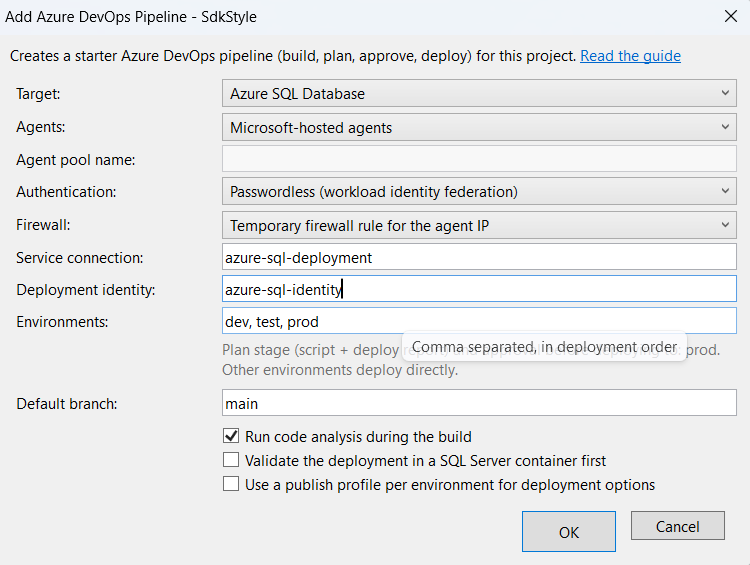
You only answer the above questions, everything else is derived from your project.
- The project style (classic, Microsoft.Build.Sql or MSBuild.Sdk.SqlProj), which decides the agent image and build step
- The project path relative to the root of your git repository
- The
.dacpacname and target platform - The SQLCMD variables defined in the project (the project is built and the variables are read from the
.dacpac) - Existing
*.publish.xmlpublish profiles, and whether code analysis is enabled
The wizard supports Azure SQL Database, Azure SQL Managed Instance and SQL Server as targets, and Microsoft-hosted agents, Managed DevOps Pools and self-hosted agents.
What you get
These files are created relative to the root of your git repository:
| File | Purpose |
|---|---|
azure-pipelines.yml |
The pipeline: build, optional validation, then one stage per environment |
pipelines/templates/deploy-database.yml |
Reusable plan/deploy stage template for one environment |
pipelines/templates/sqlpackage-steps.yml |
Installs the latest SqlPackage and runs Script, DeployReport or Publish |
pipelines/setup/grant-pipeline-access.sql |
One-time script that creates the pipeline identity as a database user |
pipelines/PIPELINE-SETUP.md |
Checklist of what to set up in Azure and Azure DevOps, with matching az commands |
<Project>.<environment>.publish.xml |
One publish profile per environment (only when publish profiles are enabled) |
Your choices are saved in pipeline-options.json next to the project file, so you can simply run the command again to regenerate the pipeline later. Existing files are only overwritten if you confirm, and publish profiles are never overwritten.
Documented by design
A generated pipeline that nobody understands is just technical debt with a nicer name. So the documentation is a first class part of the feature:
PIPELINE-SETUP.mdis a checklist tailored to your choices: the environments to create, the variable groups and the variables they need (based on the SQLCMD variables in your project), the approval checks, the service connection, and the exactazCLI commands to run.- The generated YAML is commented, and the comments link to a deployment guide that explains each topic using the same structure: the problem, why it is hard, the recommended pattern, and what the generated pipeline does for you.
The result is that the next developer who opens azure-pipelines.yml can understand not only what it does, but why it does it that way.
Start with pipelines/PIPELINE-SETUP.md - the pipeline will not run until the service connection, environments and variable groups exist.
The stages
The generated pipeline follows a build once, deploy many pattern:
- Build - compile the project, run code analysis (if enabled), and publish the
.dacpacand any publish profiles as a pipeline artifact. - Validate (optional) - deploy the
.dacpactwice to a throwaway SQL Server 2025 container. This catches deployment errors and post-deployment scripts that are not safe to run more than once - before you touch a real database. - Plan (staging and production only) - run SqlPackage
ScriptandDeployReportagainst the target, publish the.sqlscript and the.xmlreport as aplan-<environment>artifact, and show a readable summary on the pipeline run page. - Deploy - a deployment job targeting an Azure DevOps Environment, where you configure the approval check. It deploys the same
.dacpacthat was built and planned.
Stages run in order, for example dev > test > prod, and are skipped for pull request builds.
The Plan stage is only added for environments with a name containing prod, stag, stg or live. Development and test environments deploy directly to keep the feedback loop short.
Reviewers finally know what they approve
This is my favorite part. Instead of approving a deployment based on a commit message, the reviewer opens the run summary and the plan-prod artifact and sees the exact script and the list of changes SqlPackage intends to make against the current production database - including any warnings about possible data loss.
Drift detection between plan and deploy
What if someone changes the production database after the plan was created, but before it was approved? The generated deploy job creates a new DeployReport right before publishing and compares it with the approved one. If they differ, the deployment fails with "Drift detected between plan and deploy", and you simply run the pipeline again to get a fresh plan. If they match, SqlPackage publishes with all its usual safety checks in place.
Passwordless by default
The default authentication option is workload identity federation:
- An Azure Resource Manager service connection using workload identity federation - Azure DevOps exchanges a short-lived token with Entra ID on every run, so there is no client secret to store or rotate.
- Every SqlPackage call runs inside an
AzureCLI@2step, gets an access token forhttps://database.windows.net/and passes it with/AccessToken:. The token is marked as a secret, so it is masked in the logs. - The step everybody forgets: the identity must exist as a user in every target database.
grant-pipeline-access.sqlcontains theCREATE USER ... FROM EXTERNAL PROVIDERstatement for your identity, and a commentedCREATE USER ... WITH SID = ..., TYPE = Ealternative for when the Entra admin cannot query Microsoft Graph. - Least privilege:
db_ddladmin,db_datareaderanddb_datawritercover most deployments.db_owneris only needed if your project manages permissions, users or database level settings.
SQL authentication (with a secret in a variable group) and Windows authentication (self-hosted agents) are also available if you need them.
Firewall handled properly
With the Temporary firewall rule option (Azure SQL Database only), each job that connects to the database adds a firewall rule named azdo-<build id>-<job id> for the agent's current IP address, and removes it again in a step with condition: always() - so the rule is cleaned up even when the deployment fails. The setup checklist includes the az role assignment create command that gives the service connection identity permission to manage the firewall.
For production, the best option is a private network: Managed DevOps Pools or self-hosted agents in a virtual network, with a private endpoint and public network access disabled. Choose Private network in the wizard, and no firewall steps are generated.
Always the latest SqlPackage
Every job that runs SqlPackage installs the latest microsoft.sqlpackage .NET tool, adds it to the PATH and logs the installed version, so every run shows exactly which version was used. If you prefer reproducible builds, pin a version with --version on the dotnet tool install command in sqlpackage-steps.yml.
Configuration per environment
- SQLCMD variables are mapped to pipeline variables from a variable group per environment, named
sql-<environment>. Mark secrets as secret, or link the variable group to Azure Key Vault. - Publish profiles are optional (and off by default). When enabled, one profile per environment is generated (or an existing one ending with the environment name is reused), so you can make deliberate per-environment choices for options like
BlockOnPossibleDataLossandDropObjectsNotInSource. Keep server names and secrets out of the profiles. - Classic projects build with
VSBuild@1onwindows-latest, SDK-style projects build withdotnet buildon the fasterubuntu-latestimage. One more good reason to convert to SDK-style!
A few things the generator cannot do for you
- Post-deployment scripts must be safe to run repeatedly - they run on every deployment. (The MERGE scripts created by Script Table Data in SQL Project Power Tools already are.) The Validate stage helps you catch this.
- There is no automatic rollback. SqlPackage does not undo a deployment - rely on point-in-time restore or backups, and fix forward.
- GitHub Actions is not supported by the generator yet. Let me know if this is something you would like to see supported in the future.
Try it
Install or update SQL Project Power Tools for Visual Studio or SQL Project Power Tools for SSMS, right-click your SQL Database project, and select Add Azure DevOps Pipeline.... Then read through the deployment guide - even if you already have a pipeline, you may find a pattern or two worth borrowing.
As always, feedback, ideas and bug reports are very welcome in the GitHub repository. Let me know if GitHub Actions support should be next!