Deterministic SQL Bad Practice Detection in SSMS 22.7 with T-SQL Analyzer MCP Server and Copilot
SQL Server Management Studio (SSMS) 22.7 introduces support for agents and MCP (Model Context Protocol) Servers, opening new possibilities for integrating third-party analysis tools directly into your development workflow. In this post, I'll show you how to use the T-SQL Analyzer MCP Server to deterministically detect bad practices and anti-patterns in your SQL Server scripts right within SSMS.
Note that everything demonstrated in this blog post is already available in Visual Studio and VS Code.
Requirements
- .NET 10.0 runtime (minimum requirement for MCP Server mode)
- SSMS 22.7 or later
Background: Why This Matters
As a SQL developer, you want to catch design issues, performance anti-patterns, and security vulnerabilities early—ideally before code reaches production. The T-SQL Analyzer tool includes 140+ rules covering design, naming, and performance concerns. With SSMS 22.7's MCP Server support, you can now leverage this analysis directly in your IDE, with the added benefit of being able to rely on .NET 10's latest performance improvements.
What's New in SSMS 22.7?
SSMS 22.7 adds native Agent support that can communicate with MCP Servers. This means tools like T-SQL Analyzer can now:
- Analyze SQL scripts deterministically using pre-defined rules
- Provide actionable feedback within the editor context
- Integrate with your existing SQL development workflow
Setting Up the T-SQL Analyzer MCP Server
Step 1: Verify .NET 10.0 Installation
Ensure you have .NET 10.0 runtime installed:
dotnet --version
If you don't have .NET 10.0, download it from dot.net.
Step 2: Configure SSMS 22.7 MCP Server
Create or update your SSMS MCP configuration file at:
C:\Users\<username>\.mcp.json
Replace <username> with your Windows username. The recommended configuration uses the .NET 10 dnx launcher to automatically restore and invoke the T-SQL Analyzer package:
{
    "servers": {
        "tsqlanalyzer": {
            "type": "stdio",
            "command": "dnx",
            "args": [
                "ErikEJ.DacFX.TSQLAnalyzer.Cli",
                "--yes",
                "--",
                "-mcp"
            ]
        }
    }
}
This configuration:
- Uses
dnxto download and run the latest T-SQL Analyzer package from NuGet --yesautomatically restores the package if needed--separates package arguments from MCP arguments-mcptells the analyzer to launch in MCP Server mode
Step 3: Enable the MCP Server in SSMS
- Open SSMS 22.7
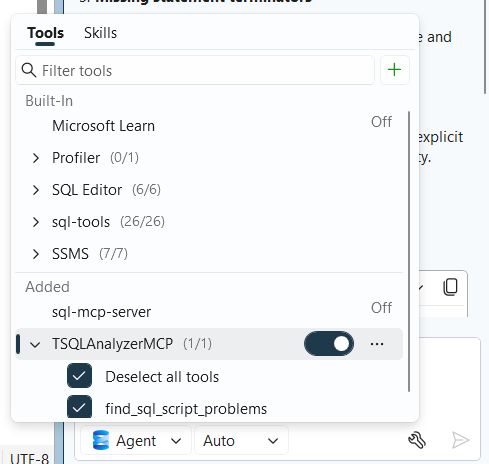
- Open GitHub Copilot, select Agent mode and enable the
find_sql_script_problemsin theTSQLAnalyzerMCPlocal MCP server.
How It Works: Deterministic Analysis
The MCP Server exposes a single analysis tool: find_sql_script_problems. This tool:
- Accepts the text content of your SQL CREATE script
- Parses the script using DacFx's T-SQL parser
- Evaluates it against 140+ built-in rules (design, naming, performance, security)
- Returns a structured list of issues with line numbers, severity, and descriptions
Example: Detecting a Potential SQL Injection
CREATE PROCEDURE [dbo].[GetUserData]
    @userId VARCHAR(255)
AS
BEGIN
    DECLARE @sql NVARCHAR(1024);
    SELECT @sql = CONCAT(N'SELECT * FROM Users WHERE Id = ''', @userId, N'''');
    EXEC [sys].[sp_executesql] @stmt = @sql;
END;
When you analyze this procedure in SSMS:
- Right-click on the query editor or use the SSMS Agent
- Select "Analyze with T-SQL Analyzer"
- The MCP Server immediately detects:
- SRD0096 (Design): Potential SQL injection issue (tainted variable in dynamic SQL)
- Any other applicable rule violations
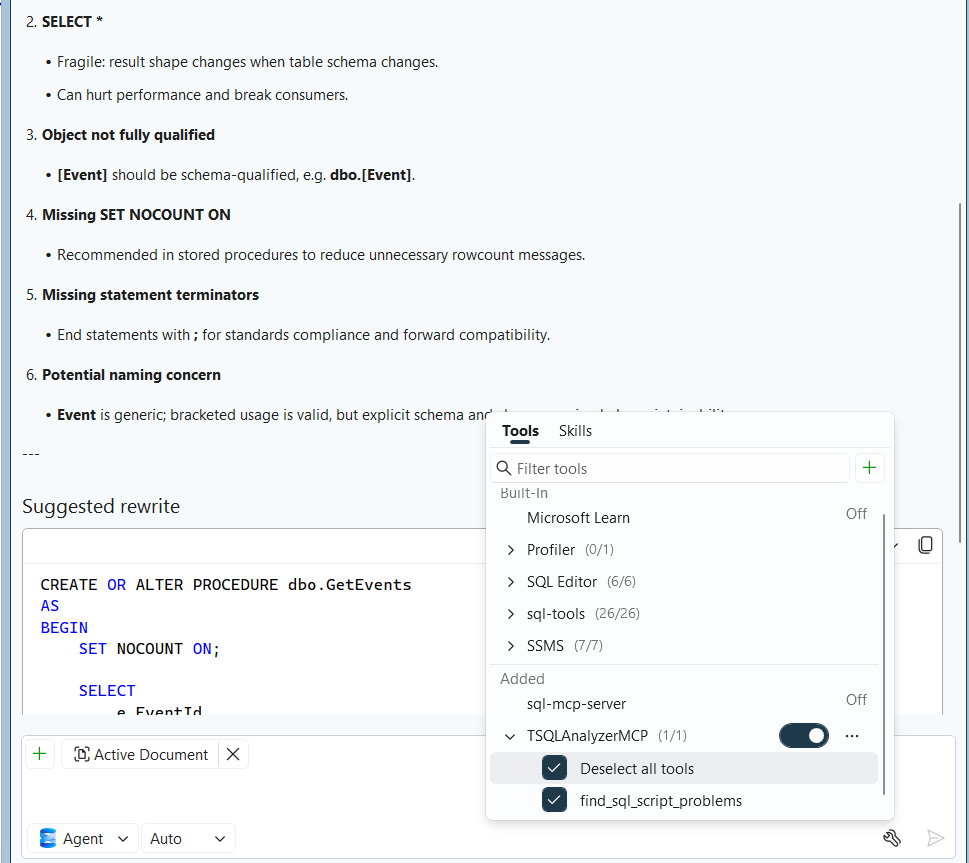
- GitHub Copilot provides a summary of the findings, and may offer to fix them.
The analysis is deterministic—the same script always produces the same results based on the rule set.
Supported Rule Categories
The analyzer covers three main categories:
Design Rules (SRD*)
- Hardcoded credentials
- Unnamed primary keys
- SQL injection vulnerabilities
- Missing schema qualifiers
- And more...
Naming Rules (SRN*)
- Single-character aliases and variables
- Non-standard naming patterns
- Case sensitivity issues
Performance Rules (SRP*)
- Implicit range windows in window functions
- Deprecated functions (CAST, CONVERT misuse)
- Cross-server joins
- Missing indexes and query store settings
- And more...
Key Advantages in SSMS 22.7
- In-Context Feedback: Analyze without leaving the editor
- Deterministic Results: Same analysis every time; no LLM variance or hallucinations
- Rule-Based: Transparent, predictable logic based on SQL Server best practices
- Quick Feedback Loop: Immediate results as you work
Example Workflow
1. Open your stored procedure in SSMS
   ↓
2. Use SSMS Copilot Agent to invoke the MCP Server
   ↓
3. T-SQL Analyzer scans the script against 140+ rules
   ↓
4. Results appear in SSMS—each issue shows line number, rule ID, and description
   ↓
5. Fix the issues or add IGNORE comments for false positives
   ↓
6. Re-analyze to confirm
Comparison: T-SQL Analyzer MCP Server vs. Command Line
| Feature | SSMS MCP Server | Command-Line CLI |
|---|---|---|
| In-IDE analysis | ✓ | ✗ |
| Batch file processing | ✗ | ✓ |
| CI/CD Integration | ✗ | ✓ |
| Interactive feedback | ✓ | ✗ |
| Deterministic results | ✓ | ✓ |
Getting Started
- Verify .NET 10.0: Run
dotnet --versionto confirm .NET 10.0 is installed - Create configuration file: Create or edit
C:\Users\<username>\.mcp.json(replace<username>with your Windows username) - Add the MCP server entry to your configuration file (see Step 2 above)
- Enable the server in SSMS: Enable the MCP server in the GitHub Copilot window
- Analyze: Ask Copilot to use the MCP Server
- Fix: Ask Copilot to address the issues
Why .NET 10.0?
The T-SQL Analyzer MCP Server requires .NET 10.0 to take advantage of the latest performance improvements and framework enhancements. The dnx package runner automatically handles fetching and executing the latest version of the tool, ensuring you always have access to the newest rules and optimizations without manual updates.
Next Steps
- Check out the documentation for detailed rule descriptions
- Review the GitHub repository for source code and community contributions
- Follow the blog for updates on new rules and SSMS features
Call to Action
The combination of SSMS 22.7's MCP Server support and the T-SQL Analyzer brings professional-grade SQL static analysis to your fingertips. Try it out and let me know how it improves your SQL development workflow!
Follow the blog for more posts on SQL Server, static analysis, and developer tools.